
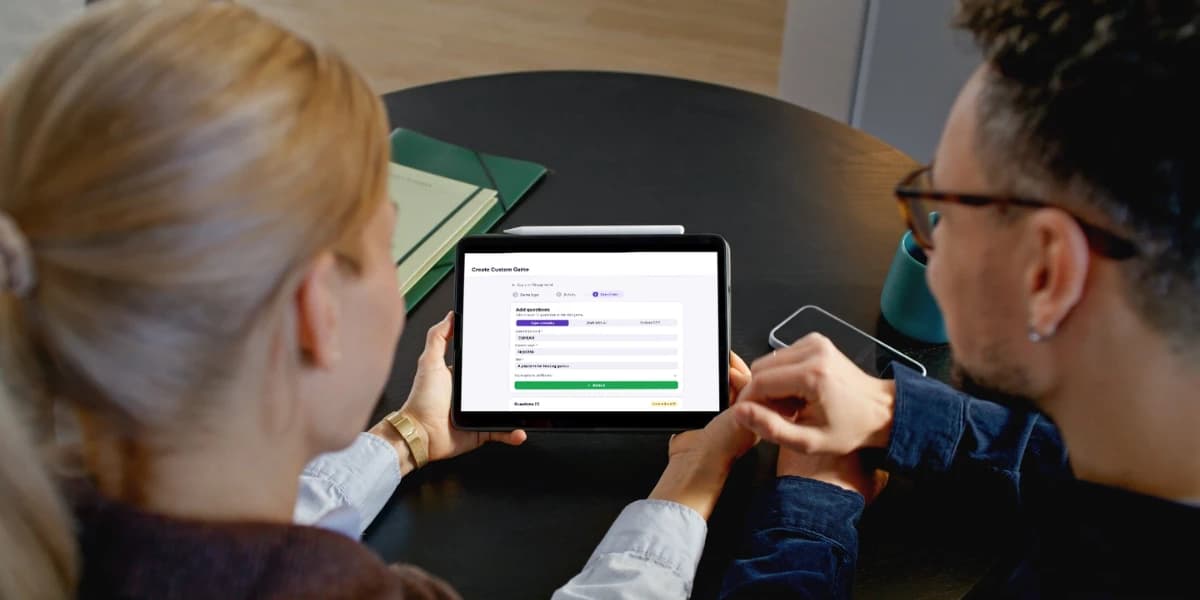
Games are often the easiest way to get people participating at an event, but finding one that fits the occasion takes a little more thought. A team lead might want an activity that tests how well colleagues know the company. An event organiser might need an icebreaker that gets conference attendees interacting before a session begins. At a birthday party, the best game might be a quiz about the guest of honour that friends and family can play together.
Ready-made games can be a good starting point, but their questions are written for a general audience. They cannot account for the people attending, the purpose of the event or the shared experiences that make an activity memorable. Custom games give organisers more control over what people play and how it connects to the occasion.
With Neegma's Playground, you can create your own question sets for team events, icebreakers, workshops and game nights. Write questions yourself, use AI to draft them or import a spreadsheet, then save your game to use at an event. Here's how to create a custom game, choose the right format and get it ready to play.
What is the Neegma Playground?
The Neegma Playground is Neegma's custom game builder. It lets you create question sets around a particular audience, topic, or event instead of relying entirely on ready-made content.
Choose a supported game type, add your questions, and save the set to your library. You can then select it when setting up a session and reuse it at future events. For example, an organiser could prepare a trivia quiz for a company offsite, create a second set for onboarding new employees and keep both ready for future sessions.
The Playground is available from the dashboard when you create a free Neegma account.
Which games can you customise on Neegma?
Neegma Playground lets you create custom question sets across a range of game formats, from trivia and word puzzles to social games that get people sharing opinions, guessing answers and working together.
For example, Trivia works well for company knowledge quizzes or event-themed questions. Telepathy challenges players to match the crowd's answers, while Who Said It gets everyone guessing which participant gave a particular response. For more active group play, Charades and Taboo offer formats built around acting and describing words.
The right format depends on the event, the audience and the kind of participation you want to encourage. The available options are shown below.
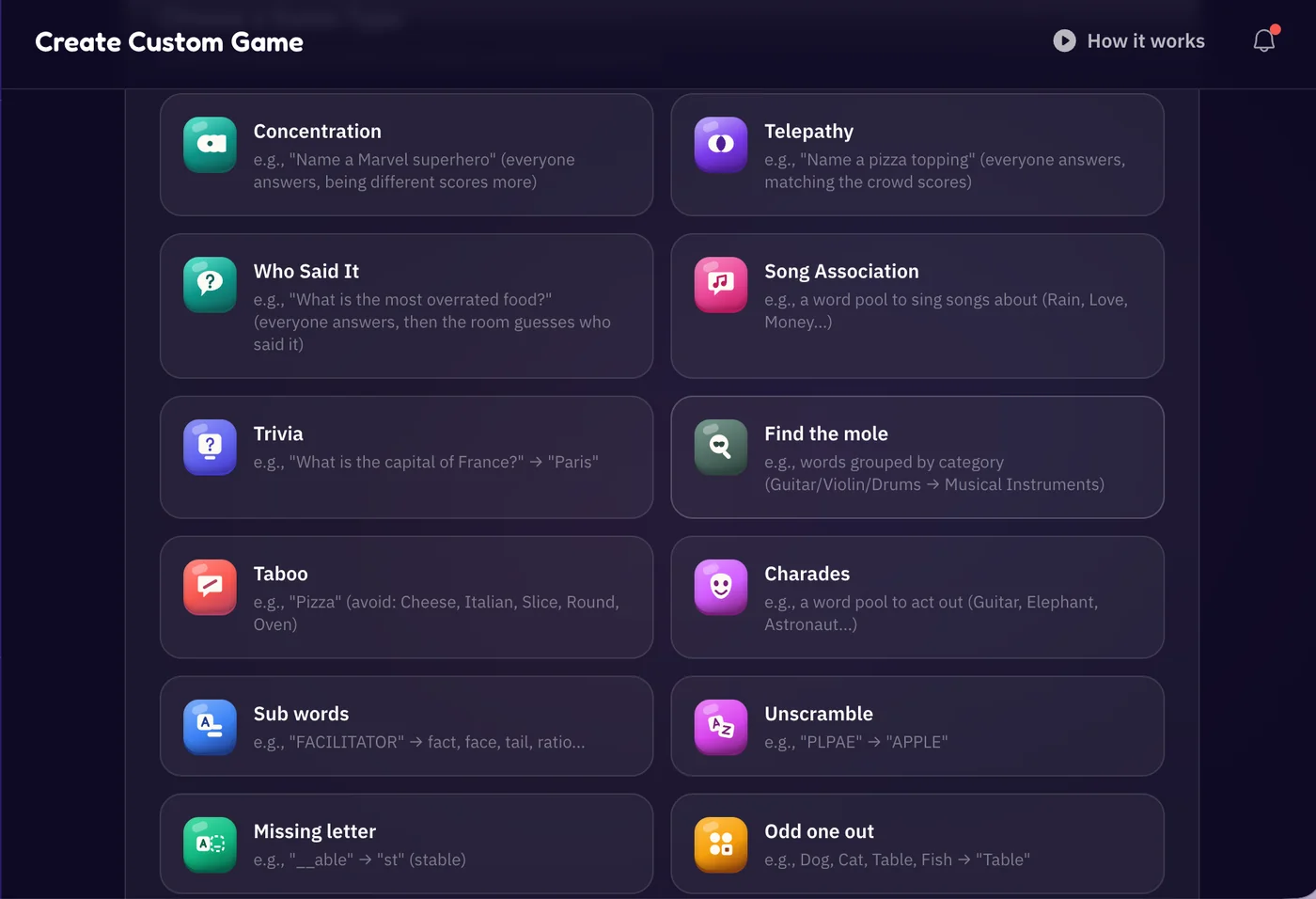
Each format has its own rules and question structure, so the next step is choosing how to create the questions for your game.
Three ways to create custom game questions
You do not have to write every question from scratch. Neegma's Playground supports manual entry, AI-assisted question generation, and CSV imports, giving you different ways to build a set depending on its size and complexity.
1. Write your own questions
Writing questions yourself gives you the most control over the content. This is helpful when the game needs to reflect specific people, experiences or information that a general question generator might not know.
For a team social, you could write questions about company milestones, product launches or memorable moments from the past year. For a birthday, you could create a quiz about the guest of honour's favourite things, travels or funny experiences.
2. Generate questions with AI
If you need a starting point, AI can help draft questions around a topic. You can use it to generate ideas for a company trivia game, a conference icebreaker or a themed game night, then review and edit the questions before using them.
For the best results, provide a clear topic and enough context about the audience. Check the generated questions for accuracy, relevance and suitability before adding them to your game.
Use Neegma's AI question-generation feature to see how it works.
3. Import questions from a CSV file
If your questions already exist in a spreadsheet, importing them can save time compared with entering each one manually. This is useful for recurring activities, training sessions, or events where a prepared question bank is available.
Check that your spreadsheet follows the supported format before importing it, and review the questions after upload to make sure they appear correctly.
How to create a custom game on Neegma
Once you know which game format suits your event and how you want to prepare the questions, you can start building your game.
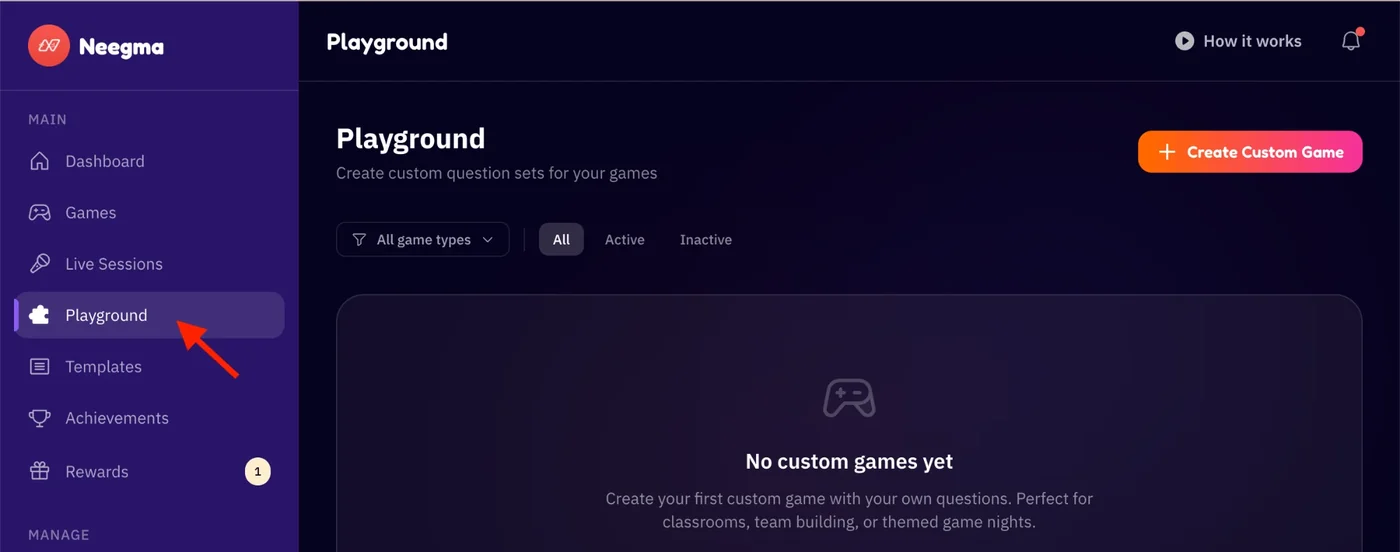
Step 1: Open Neegma Playground
Visit Neegma and access Playground to begin creating a custom game.
Step 2: Choose a game format
Consider the audience and select the format that best suits your activity. A short icebreaker for a conference may need a different format from a team quiz or a game night with friends. Trivia can also work for knowledge-based questions, while games such as Telepathy, Charades and Taboo offer different ways for participants to respond and interact.
Step 3: Name your game
Give your game a clear title so you can identify it when preparing an event. For example, “Annual Team Social Trivia” is more descriptive than a generic name if you're saving several activities.
Step 4: Add your questions
Choose your preferred question-creation method: manual entry, AI generation or CSV import. Complete the required fields for your selected game type, then check that the prompts and answers appear correctly.
Step 5: Review and save
Check your questions for spelling mistakes, duplicate prompts, unclear wording and incorrect answers. Make sure the content is suitable for the intended audience.
Once you're satisfied with the question set, save the game in Playground. Preparing it before the event gives you time to make adjustments without interrupting the programme.
Prefer to watch? This short video walks through the whole process.
Watch: how to create a custom game on Neegma
Run your custom game at an event
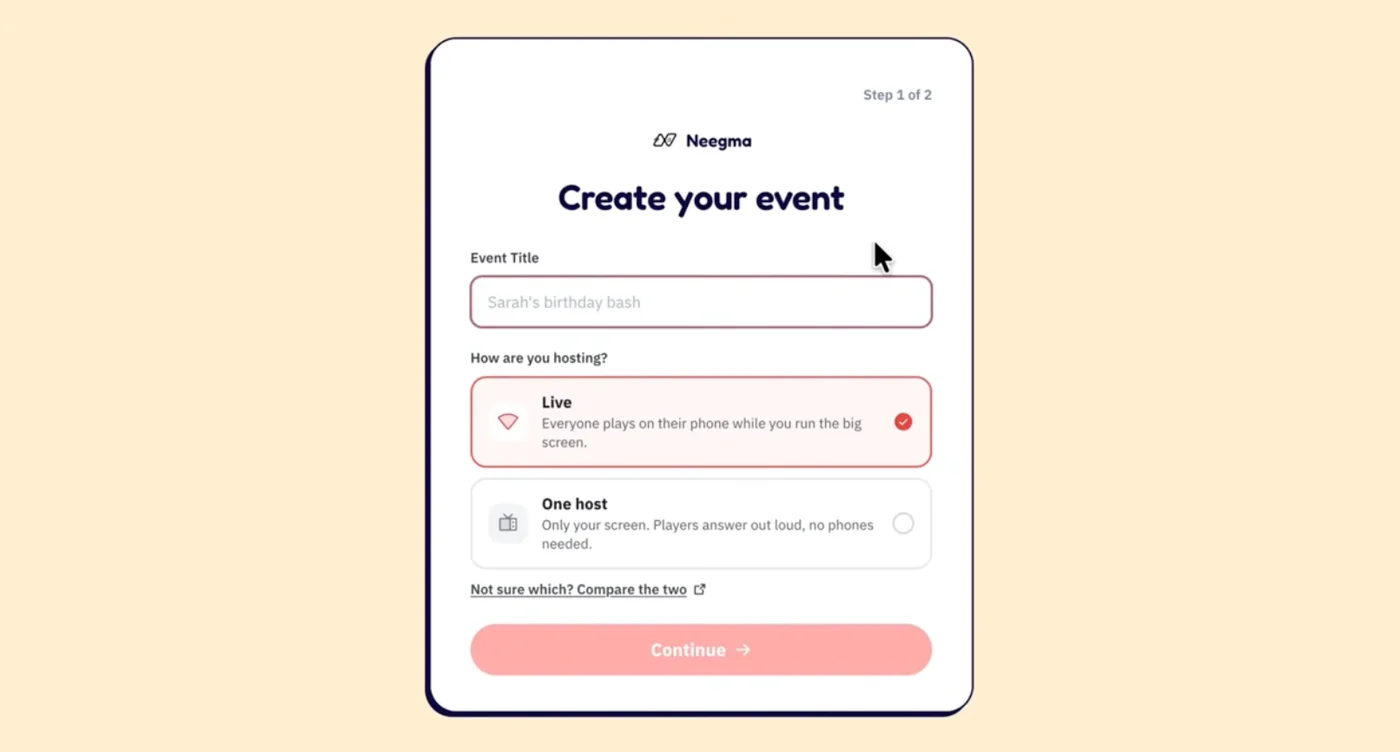
Once created, your custom game is available in Live sessions and One-host sessions. You can also add it to a session template to reuse it as part of a planned event.
Neegma uses a host-led format. The host runs the session from the host screen, while guests join through the session's joining instructions. For in-person events, the host screen can display the activity while participants play on their own phones.
Before the event:
- Check the session: Confirm that your custom game has been added.
- Prepare the host screen: Open the session and make sure the setup is ready.
- Explain the rules: Give participants a quick introduction if the format is unfamiliar.
- Allow time for the activity: Choose a suitable point in the programme and leave enough time to play.
Build a custom game in the Playground · Explore ready-made templates · Browse the full game library