
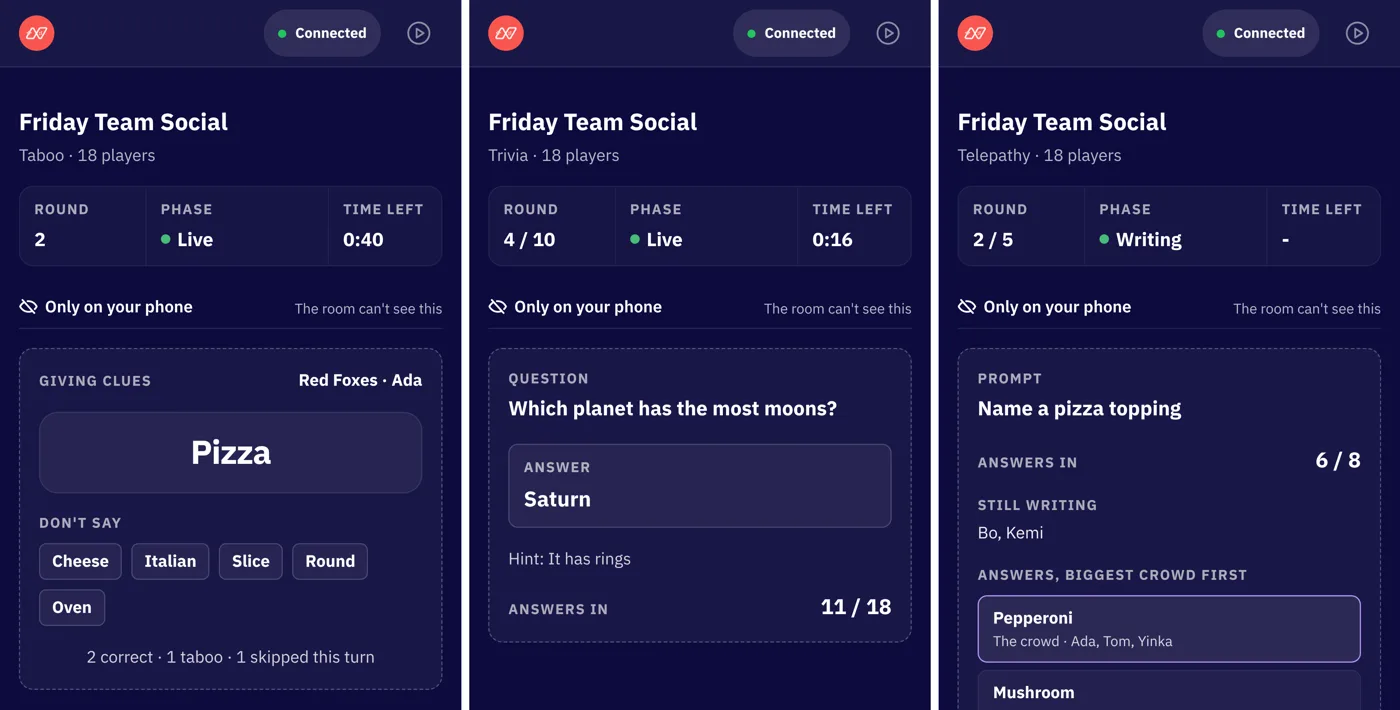
Every host knows the moment. The quiz is on the TV, the room is leaning in, and you need to check the answer, or start the next round, without walking back to the laptop and turning your back on everyone.
Host controls fix that. Press Host controls in any Neegma session and its controls open in their own tab. Put that tab on your phone and you can run the whole session from anywhere in the room, with the answers the room must not see kept on your screen only. As of today it works with every game, in live sessions where everyone plays on their phone and in one-host sessions where only you have a device.
Why a host needs a second screen
The screen the room watches has two jobs that fight each other. It has to show the game to everyone, and it has to give you what you need to run it. Anything only you should see, like the Trivia answer or who the Wolves are, either stays hidden from you or risks being projected to everyone.
A second screen in your hand splits those jobs:
- The big screen is for the room. Questions, timers, leaderboards and reveals.
- Your phone is for you. The same buttons, plus the private information that makes you a better host.
It also frees you from the laptop. You can stand at the front, walk between tables, or sit with a team that needs encouragement, and still move the game on the moment the room is ready.
The whole session, not just the game
Your phone covers everything around the games too:
- Start from the lobby. Watch people join, then press Let's Play when everyone's in.
- Pick the next game from a list. Every game and question set the main screen offers, one tap each. The game's setup opens on the big screen, and you start it from your phone.
- End a game. End game is on your phone's bar. When the main screen asks you to confirm, the answer is on your phone too.
What your phone shows, game by game
Every game mirrors the main screen's buttons, so Start, Next, Reveal, Auto Next and the rest are always in your hand. On top of that, each game shows what only you should know.
- Trivia, Unscramble, Missing Letter and Odd One Out: the answer before it is revealed. In a live session you also see how many people have answered and who got it right, fastest first. In a one-host game you see who is answering.
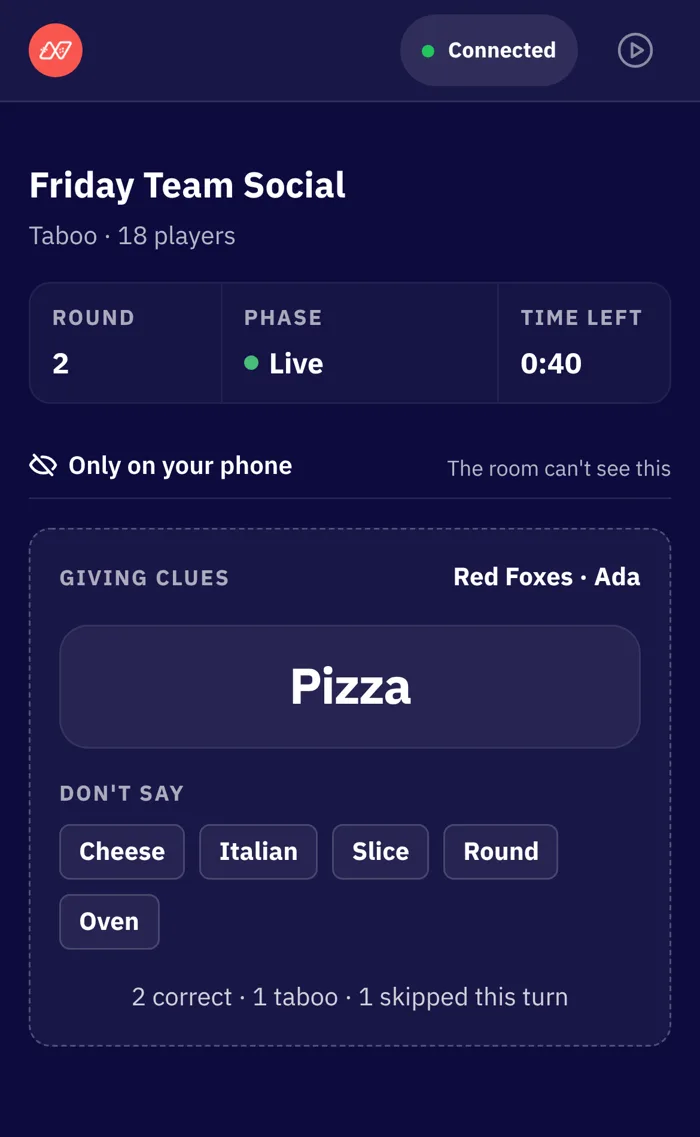
- Charades and Taboo: the word being acted or described, and Taboo's banned words. In a one-host game you can mark Correct, Taboo or Skip from your phone. One-host Charades can even keep the word off the big screen entirely.
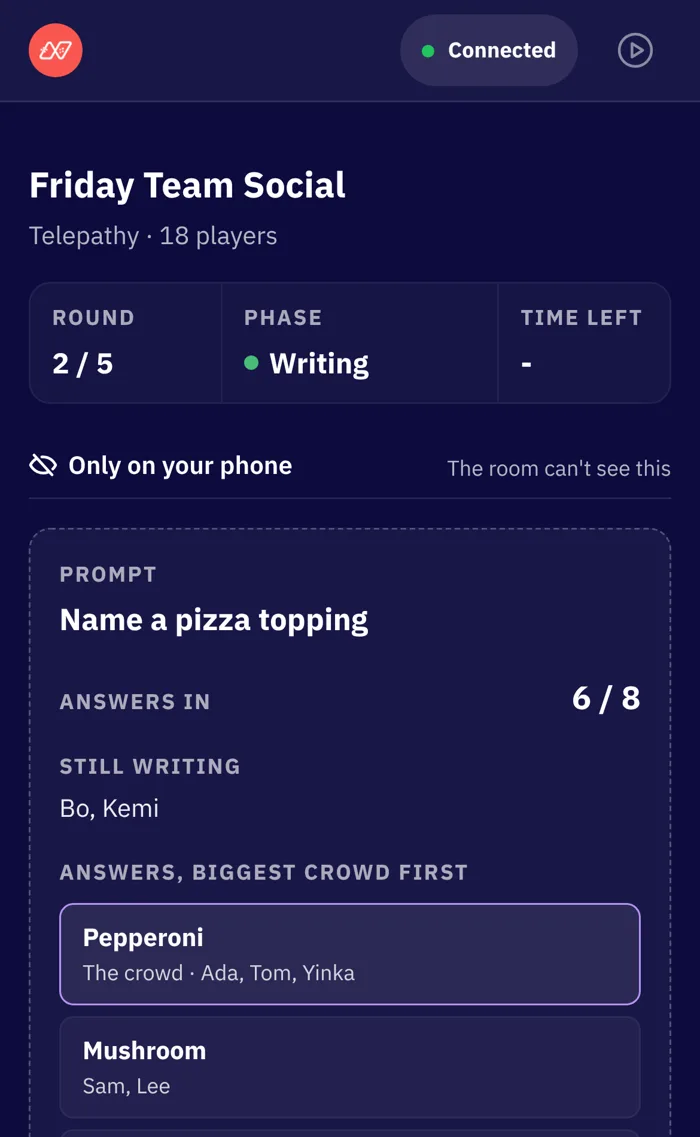
- Who Said It, Concentration and Telepathy: every answer as it comes in, with the names behind it. You can see who is still writing and spot a great answer to tease before the reveal.
- Find the Mole and Villagers & Wolves: who the Moles or the Wolves are, and the live vote with names. In Villagers & Wolves you can confirm an elimination, re-deal or take someone out from your phone.
- Two Truths and a Lie: who is still writing their statements, then which one is the lie and how the room is voting.
- Crack the Code: the code itself, who is still guessing and who is closest.
- Word Art and Song Association: the prompt or word before you reveal it, so you can skip one that won't land with your crowd.
- Bingo and Sub-Words: who holds each call and who is closest to a full card, or every accepted word and the hint.
Five ways hosts use it
1. Quiz nights without the answer sheet. The answer is on your phone the moment the question goes up, so you can read the question, glance down and judge a close answer with confidence. No printed sheet to lose.
2. Charades and Taboo with you in the room. Stand next to the person acting or describing, show them the word on your phone, and keep score as you go. Nobody has to crowd round a laptop.
3. Social deduction games without giving it away. In Find the Mole and Villagers & Wolves you know who is lying. That lets you nudge a quiet discussion along, or time the vote, without the room reading it off the screen.
4. Team building with the host at the tables. At an offsite or a team bonding session, walk between tables, listen in, and start the next round when the room is ready rather than when you get back to your seat.
5. Classes and workshops. Teachers and facilitators can stand by the board, see which answers are coming in, and move on at the pace of the room.
How to turn it on
- Sign in and start a session you created, live or one-host.
- Press Host controls in the top bar of your session.
- The controls open in their own tab. Open the same link on your phone, or keep the tab on a laptop beside the screen the room watches.
Your main screen stays in charge. If you tap a button on your phone and on the main screen at the same moment, Neegma only applies it once, so the game never skips a question. If your phone loses signal, the main screen carries on and your phone reconnects by itself.
Host controls work on any session you create while signed in. Guest sessions, which have no account behind them, don't have them. There is a short guide in the Help Center.
Tips for your first game
- Open it before the room fills up. Connect your phone while you set up, so you are not fiddling with tabs once people arrive.
- Keep your phone's brightness up and its lock time long. A phone that locks mid-round is the most common hiccup.
- Let Auto Next carry the quiz. For a fast quiz, turn on Auto Next and use your phone mainly for answers and the odd pause.
- Pair it with a game that rewards a confident host. Telepathy and Who Said It are more fun when you can tease the answers you can see coming in.
Questions hosts often ask
Do players see anything from my phone?
No. Your phone uses its own private connection that player phones cannot read. The room only sees what is on the main screen.
Does it work for one-host sessions?
Yes. Every game that runs in a one-host session works with Host controls, and the quiz games, Charades and Taboo get extra buttons there so you can run the turn from your phone.
Do I need an app?
No. Host controls open in your phone's browser, like everything else in Neegma.
Can I have the controls on two devices?
Yes. Open the same Host controls link on a second phone or laptop, signed in to the same account. Both show what's happening, and either can press. If both press at once, Neegma applies it once.
Can a co-host use it?
Today Host controls are for the account that created the session. A separate control link for a helper is on our list.
The best hosts are the ones who are in the room with their guests. Start a session, press Host controls, and run your next game night from the floor.